How to Integrate BlsquiSDK in Unity (Zero-Fee Web3 Payments & Wallet Setup)
Integrating blockchain assets, esports prize payouts, or direct in-game payments into Unity shouldn't require writing custom cryptography or forcing players through clunky browser extensions. In this guide, you’ll learn how to import and set up BlsquiSDK-Unity (https://github.com/blsqui/BlsquiSDK-Unity) inside your Unity project—and wire up real-time WebRTC wallet sync—in just a few minutes.
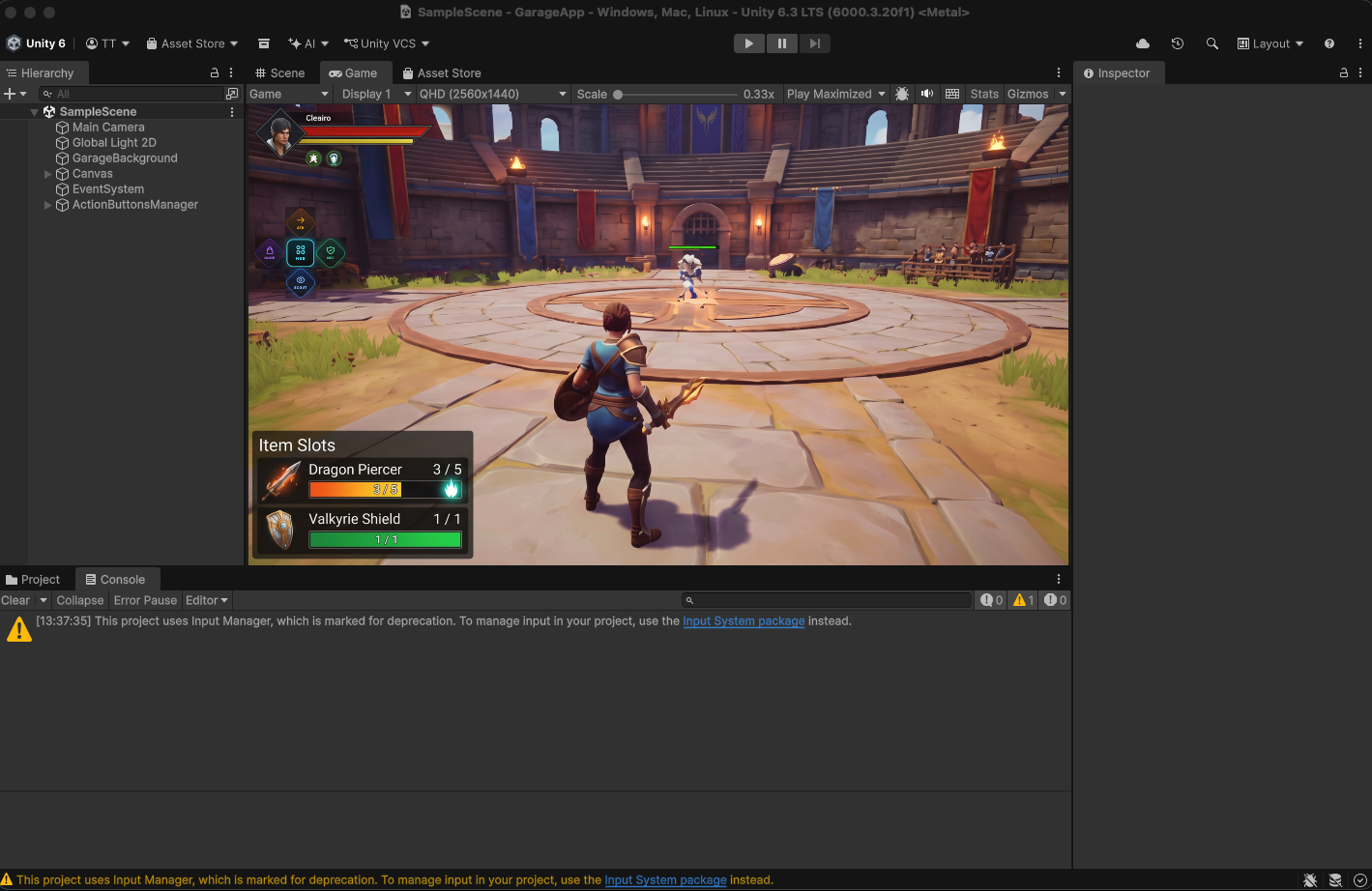
First, open the Unity project.
Add the SDK by following the instructions below.
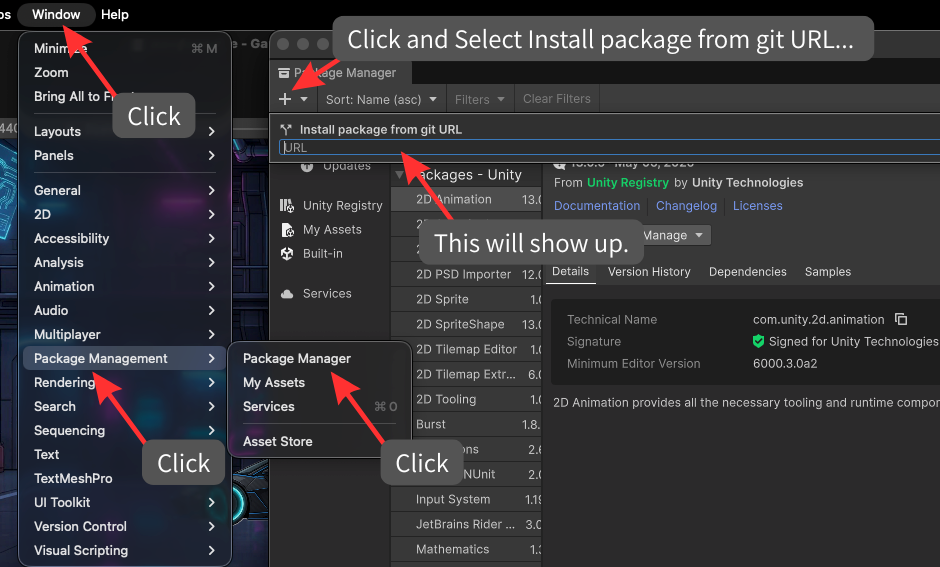
Enter this URL into the field labeled "URL."
https://github.com/blsqui/BlsquiSDK-Unity.git
Click the "Install" button.
The build process will start automatically.
Here, I will introduce the contents of the SDK code.
To ensure Unity developers can integrate on-chain features using familiar C# patterns (async / await and standard C# events)—without touching smart contract internals or cryptographic signing logic—the SDK is cleanly separated into four core scripts:
BlsquiCurrentUser(Persistent Session & Inventory Singleton) Implemented as aDontDestroyOnLoadMonoBehavioursingleton, this class persists the player's login state and wallet address across scene loads. It handles launching the companion dashboard (OpenDashboard), triggering in-game item actions (RequestUseItem), and dispatching real-time equipment or item-use events (OnItemUseRequested) sent from the web dashboard.BlsquiSDK(Async Transaction Execution & Polling Engine) Callingawait BlsquiSDK.RequestTransaction(options)automatically requests a tamper-proof signed session token, opens the system browser signing gateway, polls asynchronously until on-chain finality (SEALED) without blocking Unity's main thread or frame rate, and returns a cleanTxResultobject—with zero third-party JSON dependencies.BlsquiWebRTCPresence(Zero-Lag P2P DataChannel Bridge) Wraps Unity'sUnity.WebRTCpackage to establish a direct WebRTC DataChannel between the Unity runtime and the player's browser wallet. When a player swaps weapon slots or triggers an item from the web dashboard, the state updates in-game with sub-second, zero-lag responsiveness.BlsquiStageSlot(On-Chain Loadout & Scouter Query) Queries Flow Access Nodes directly via lightweight Cadence scripts to fetch any player's equipped on-chain item slots (List<StageSlotItem>). Because read-only queries require no wallet popup or gas, you can display opponent loadouts or verify equipped gear in real time.
Next, integrate the BlsquiSDK into the project.
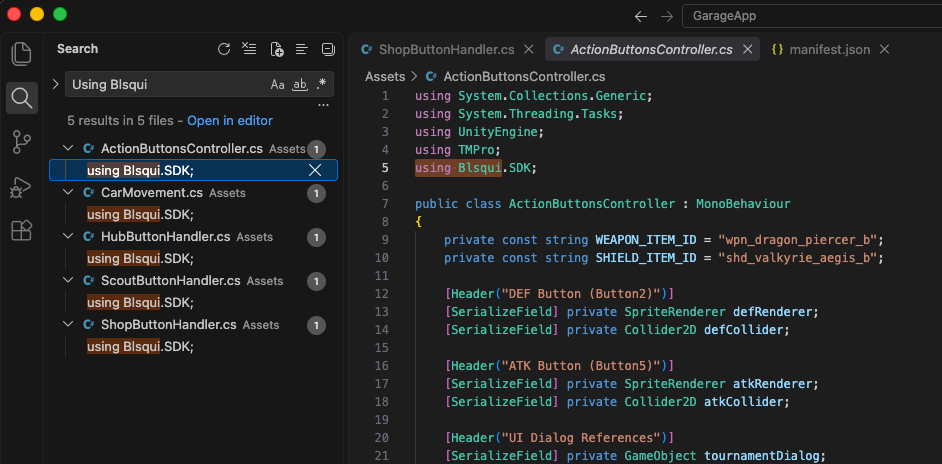
Add the following two using statements to any file where you intend to use the SDK:
using System.Collections.Generic;
using Blsqui.SDK;
If you only need to display the dashboard or retrieve the status of equipment slots, including using Blsqui.SDK; is sufficient.
Retrieve the state of the equipment slots for a specific blockchain account.
Call BlsquiStageSlot.GetStageSlots.
using System.Text;
using UnityEngine;
using TMPro;
using Blsqui.SDK;

public class ScoutButtonHandler : MonoBehaviour
{
    private const string TARGET_ADDRESS = "0x2f13c512df0b0ad7";
    private const string PUBLISHER_ADDRESS = "0x2f13c512df0b0ad7";
    private const string APP_ID = "valkyrie_vanguard";

    [Header("UI Dialog References")]
    [SerializeField] private GameObject tournamentDialog;
    [SerializeField] private TMP_Text titleText;
    [SerializeField] private TMP_Text messageText;
    [SerializeField] private GameObject cancelButton; // Will be hidden for Scout modal

    public async void ScoutOpponentSlots()
    {
        Debug.Log($"[Scout] Querying equipped slots for: {TARGET_ADDRESS}");

        // 1. Show immediate loading feedback on the dialog
        if (tournamentDialog != null)
        {
            if (cancelButton != null) cancelButton.SetActive(false);
            if (titleText != null) titleText.text = "Scouting Opponent...";
            if (messageText != null) messageText.text = $"Connecting to Flow Access Node...\nTarget: {TARGET_ADDRESS}";
            tournamentDialog.SetActive(true);
        }

        // 2. Fetch equipped slots from Flow Testnet
        var slots = await BlsquiStageSlot.GetStageSlots(new StageSlotOptions
        {
            targetAddress = TARGET_ADDRESS,
            publisherAddress = PUBLISHER_ADDRESS,
            appId = APP_ID,
            isTestnet = true,
            verbose = true
        });

        // 3. Format and display the scouted results
        if (tournamentDialog != null && messageText != null)
        {
            if (titleText != null) titleText.text = "Opponent Loadout";

            int maxSlotsToShow = 3;
            var sb = new StringBuilder();
            sb.AppendLine($"Target: {TARGET_ADDRESS}");
            sb.AppendLine("Equipped Item Slots:\n");

            bool hasAnyEquipped = false;
            int count = 0;

            foreach (var slot in slots)
            {
                if (count >= maxSlotsToShow)
                {
                    break;
                }

                if (!string.IsNullOrWhiteSpace(slot.itemId))
                {
                    hasAnyEquipped = true;
                    sb.AppendLine($"• Slot {slot.slotIndex}: {slot.itemId}");
                }
                else
                {
                    sb.AppendLine($"• Slot {slot.slotIndex}: (Empty)");
                }

                count++;
            }

            if (!hasAnyEquipped)
            {
                sb.AppendLine("No items equipped in stage slots.");
            }

            messageText.text = sb.ToString();
        }
    }

    // Hooked to ConfirmButton.onClick to dismiss the modal
    public void OnCloseScoutDialog()
    {
        if (tournamentDialog != null)
        {
            tournamentDialog.SetActive(false);
        }
    }
}
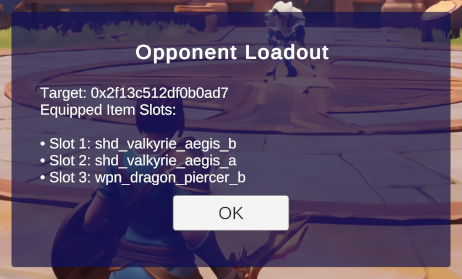
Link this code to the click event of a button.
When the event is triggered, you can retrieve slot information for the specified address, as shown below.
Open the dashboard and retrieve the slot information displayed there.
Call BlsquiCurrentUser.Instance.OpenDashboard.
using System.Collections.Generic;
using UnityEngine;
using Blsqui.SDK;

public class HubButtonHandler : MonoBehaviour
{
    [Header("App Config")]
    [SerializeField] private string appId = "valkyrie_vanguard";
    [SerializeField] private string publisherAddress = "0x2f13c512df0b0ad7";
    [SerializeField] private string network = "testnet";

    private void Start()
    {
        // Ensure BlsquiCurrentUser manager exists in scene
        if (BlsquiCurrentUser.Instance == null)
        {
            var userGo = new GameObject("BlsquiCurrentUser");
            var user = userGo.AddComponent<BlsquiCurrentUser>();
            user.Configure(appId, publisherAddress, network);
        }
        else
        {
            BlsquiCurrentUser.Instance.Configure(appId, publisherAddress, network);
        }

        // Subscribe to real-time user profile & equipped slot updates from the dashboard
        BlsquiCurrentUser.Instance.OnUserUpdated += HandleUserUpdated;
        BlsquiCurrentUser.Instance.OnSlotsUpdated += HandleSlotsUpdated;
    }

    private void OnDestroy()
    {
        if (BlsquiCurrentUser.Instance != null)
        {
            BlsquiCurrentUser.Instance.OnUserUpdated -= HandleUserUpdated;
            BlsquiCurrentUser.Instance.OnSlotsUpdated -= HandleSlotsUpdated;
        }
    }

    public void OnHubClicked()
    {
        Debug.Log("[Hub] Opening Blsqui Dashboard...");
        BlsquiCurrentUser.Instance.OpenDashboard();
    }

    private void HandleUserUpdated(CurrentUserState user)
    {
        if (user.loggedIn)
        {
            Debug.Log($"[Hub] Dashboard Connected | Player: {user.addr} | Name: {user.userName}");
        }
        else
        {
            Debug.Log("[Hub] Player logged out from Dashboard.");
        }
    }

    private void HandleSlotsUpdated(List<StageSlotItem> slots)
    {
        Debug.Log($"[Hub] Synced {slots.Count} equipped slot(s) from Dashboard:");
        foreach (var slot in slots)
        {
            Debug.Log($"  - Slot {slot.slotIndex}: {slot.itemId}");
        }
    }
}
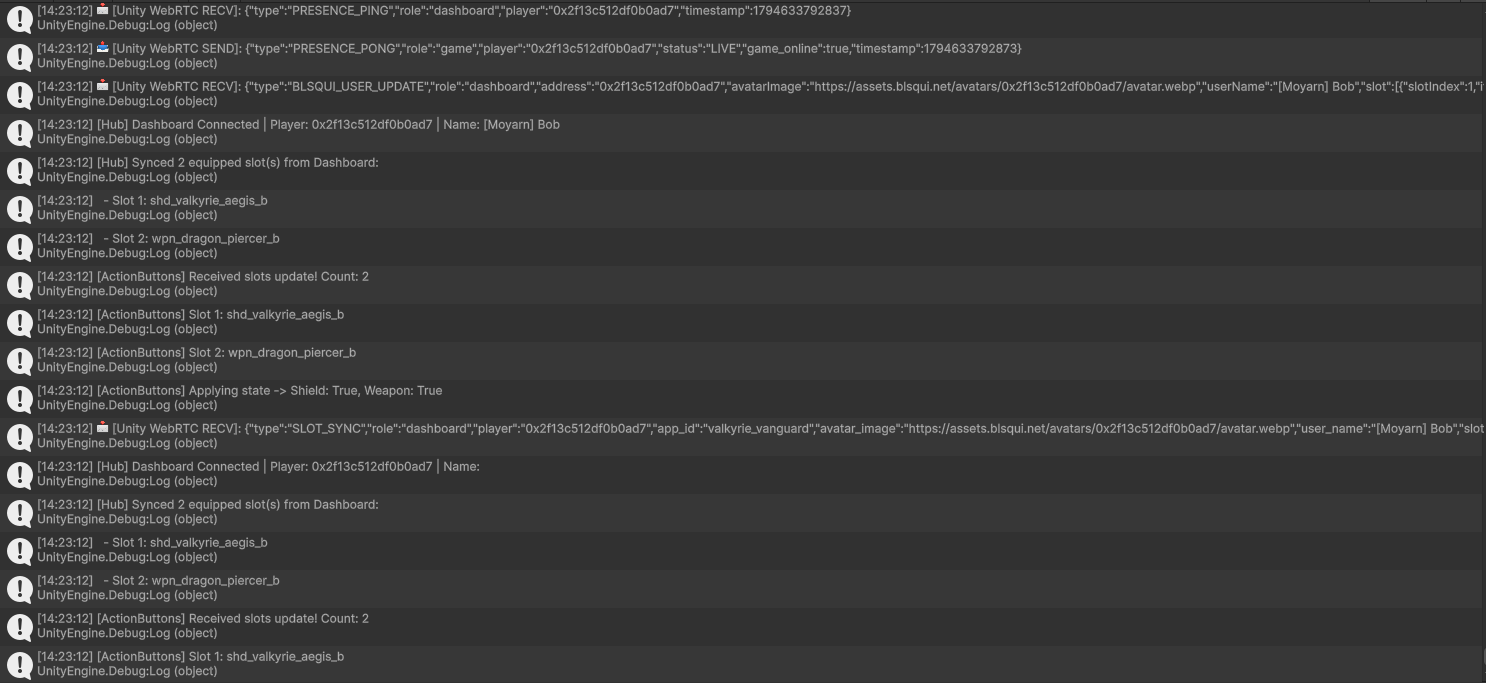
Calling OpenDashboard() launches the web dashboard in the system browser while simultaneously establishing a WebRTC DataChannel in the background.
By subscribing to OnUserUpdated and OnSlotsUpdated, your Unity client automatically receives the player's wallet address and equipped stage slots in real time whenever they log in or swap gear on the dashboard.
Link this code to the click event of a button.
When the event is triggered, the dashboard will open as shown below.
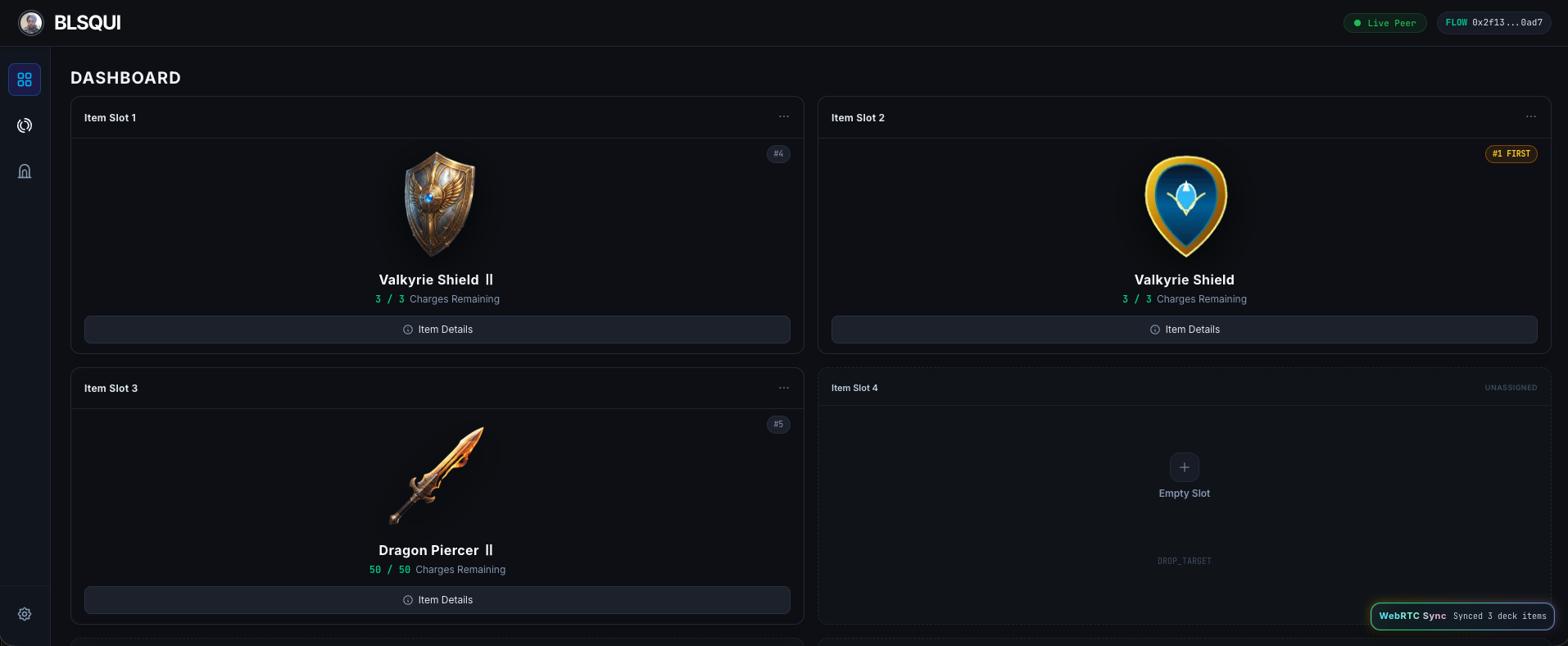
At the same time, player and slot information is sent to Unity.
Purchase items
Call BlsquiSDK.RequestTransaction.
using System.Collections.Generic;
using UnityEngine;
using TMPro;
using Blsqui.SDK;

public class ShopButtonHandler : MonoBehaviour
{
    private const string WEAPON_SHOP_FLIX_ID = "351d9d6f23ebe5ddbe9bf5b4f937a352c5caaa6a4439b5e464f3b16c1d671472";

    [Header("UI Dialog References")]
    [SerializeField] private GameObject tournamentDialog;
    [SerializeField] private TMP_Text titleText;
    [SerializeField] private TMP_Text messageText;
    [SerializeField] private GameObject cancelButton;

    public async void OnShopButtonClicked()
    {
        Debug.Log("[Shop] Opening purchase transaction...");

        // Show transaction feedback in the dialog
        if (tournamentDialog != null)
        {
            if (cancelButton != null) cancelButton.SetActive(false);
            if (titleText != null) titleText.text = "Processing Shop Item...";
            if (messageText != null) messageText.text = "Authorizing transaction on Flow...\nPlease complete payment in the browser.";
            tournamentDialog.SetActive(true);
        }


        var options = new TxOptions
        {
            isTestnet = true,
            verbose = true,
            flixId = "351d9d6f23ebe5ddbe9bf5b4f937a352c5caaa6a4439b5e464f3b16c1d671472",
            args = new Dictionary<string, string>()
        };

        TxResult result = await BlsquiSDK.RequestTransaction(options);

        // Update dialog state upon completion
        if (result.status == "SEALED")
        {
            Debug.Log($"Shop purchase succeeded! TX ID: {result.txId}");
            if (titleText != null) titleText.text = "Purchase Successful!";
            if (messageText != null) messageText.text = $"Item purchase sealed !!!\n\nTX ID:\n{result.txId}";
        }
        else
        {
            string err = !string.IsNullOrEmpty(result.errorMessage) ? result.errorMessage : result.error;
            Debug.LogWarning($"[Shop] Purchase incomplete. Status: {result.status} | Error: {err}");
            if (titleText != null) titleText.text = "Transaction Cancelled";
            if (messageText != null) messageText.text = $"Status: {result.status}\n{err}";
        }
    }
}
Bind this code to the click event of a button.
Triggering the event opens the SDK’s transaction screen. Once an item is purchased, the full payment amount is credited to the account associated with that item.
Prompting Blockchain Item Usage
Call BlsquiCurrentUser.Instance.RequestUseItem.
using System.Collections.Generic;
using System.Threading.Tasks;
using UnityEngine;
using TMPro;
using Blsqui.SDK;

public class ActionButtonsController : MonoBehaviour
{
    private const string WEAPON_ITEM_ID = "wpn_dragon_piercer_b";
    private const string SHIELD_ITEM_ID = "shd_valkyrie_aegis_b";

    [Header("DEF Button (Button2)")]
    [SerializeField] private SpriteRenderer defRenderer;
    [SerializeField] private Collider2D defCollider;

    [Header("ATK Button (Button5)")]
    [SerializeField] private SpriteRenderer atkRenderer;
    [SerializeField] private Collider2D atkCollider;

    [Header("UI Dialog References")]
    [SerializeField] private GameObject tournamentDialog;
    [SerializeField] private TMP_Text titleText;
    [SerializeField] private TMP_Text messageText;
    [SerializeField] private GameObject cancelButton;

    private const float DISABLED_ALPHA = 0.2f;
    private const float ENABLED_ALPHA = 1.0f;
    private bool isSubscribed = false;

    private void Awake()
    {
        // Force initial disabled visual
        SetButtonVisualState(defRenderer, defCollider, false);
        SetButtonVisualState(atkRenderer, atkCollider, false);
    }

    private void Start()
    {
        TrySubscribe();
    }

    private void Update()
    {
        // Fallback: If BlsquiCurrentUser spawned after Start(), catch it here
        if (!isSubscribed)
        {
            TrySubscribe();
        }
    }

    private void TrySubscribe()
    {
        if (BlsquiCurrentUser.Instance != null && !isSubscribed)
        {
            BlsquiCurrentUser.Instance.OnSlotsUpdated += UpdateEquipmentButtons;
            BlsquiCurrentUser.Instance.OnItemUseRequested += HandleItemUseRequested;
            isSubscribed = true;
            Debug.Log(" ActionButtonsController successfully subscribed to BlsquiCurrentUser.OnSlotsUpdated!");
        }
    }

    private void OnDestroy()
    {
        if (BlsquiCurrentUser.Instance != null && isSubscribed)
        {
            BlsquiCurrentUser.Instance.OnSlotsUpdated -= UpdateEquipmentButtons;
            BlsquiCurrentUser.Instance.OnItemUseRequested -= HandleItemUseRequested;
            isSubscribed = false;
        }
    }

    public void UpdateEquipmentButtons(List<StageSlotItem> equippedSlots)
    {
        int slotCount = equippedSlots?.Count ?? 0;
        Debug.Log($"[ActionButtons] Received slots update! Count: {slotCount}");

        bool hasShield = false;
        bool hasWeapon = false;

        if (equippedSlots != null)
        {
            foreach (var slot in equippedSlots)
            {
                if (slot == null) continue;

                Debug.Log($"[ActionButtons] Slot {slot.slotIndex}: {slot.itemId}");

                if (string.IsNullOrEmpty(slot.itemId)) continue;

                if (slot.itemId == SHIELD_ITEM_ID)
                {
                    hasShield = true;
                }
                else if (slot.itemId == WEAPON_ITEM_ID)
                {
                    hasWeapon = true;
                }
            }
        }

        Debug.Log($"[ActionButtons] Applying state -> Shield: {hasShield}, Weapon: {hasWeapon}");
        SetButtonVisualState(defRenderer, defCollider, hasShield);
        SetButtonVisualState(atkRenderer, atkCollider, hasWeapon);
    }

    private void SetButtonVisualState(SpriteRenderer sr, Collider2D col, bool isEnabled)
    {
        if (sr != null)
        {
            Color c = sr.color;
            c.a = isEnabled ? ENABLED_ALPHA : DISABLED_ALPHA;
            sr.color = c;
        }

        if (col != null)
        {
            col.enabled = isEnabled;
        }
    }

    public void OnDefButtonClicked()
    {
        Debug.Log("[ActionButtons] DEF Button clicked -> Requesting shd_valkyrie_aegis_b");
        if (BlsquiCurrentUser.Instance != null)
        {
            BlsquiCurrentUser.Instance.RequestUseItem(SHIELD_ITEM_ID);
        }
    }

    public void OnAtkButtonClicked()
    {
        Debug.Log("[ActionButtons] ATK Button clicked -> Requesting wpn_dragon_piercer_b");
        if (BlsquiCurrentUser.Instance != null)
        {
            BlsquiCurrentUser.Instance.RequestUseItem(WEAPON_ITEM_ID);
        }
    }

    private async void HandleItemUseRequested(ItemUseRequestPayload payload)
    {
        Debug.Log($"[ActionButtons] Received execution request for {payload.itemId} #{payload.serialNumber} (FLIX: {payload.flixId})");

        // Show immediate progress dialog
        if (tournamentDialog != null)
        {
            if (cancelButton != null) cancelButton.SetActive(false);
            if (titleText != null) titleText.text = "Executing Action...";
            if (messageText != null) messageText.text = $"Authorizing transaction on Flow...\nItem: {payload.itemId} (Serial #{payload.serialNumber})";
            tournamentDialog.SetActive(true);
        }

        // Prepare transaction arguments matching FLIX template parameter requirements
        var txArgs = new Dictionary<string, string>
        {
            { "publisherAddress", payload.publisherAddress },
            { "appId", payload.appId },
            { "itemId", payload.itemId },
            { "serialNumber", payload.serialNumber.ToString() }
        };

        var options = new TxOptions
        {
            isTestnet = true,
            verbose = true,
            flixId = payload.flixId,
            args = txArgs
        };

        // 3. Request signed transaction session via Blsqui SDK gateway
        TxResult result = await BlsquiSDK.RequestTransaction(options);

        // 4. Update the dialog with final state
        if (result.status == "SEALED")
        {
            Debug.Log($"🎉 Item action sealed! TX ID: {result.txId}");
            if (titleText != null) titleText.text = "Action Complete!";
            if (messageText != null) messageText.text = $"[GAME] ITEM USED SUCCESSFULLY !!!\n{payload.itemId} (Serial #{payload.serialNumber})\n\nTX: {result.txId}";
        }
        else
        {
            string err = !string.IsNullOrEmpty(result.errorMessage) ? result.errorMessage : result.error;
            Debug.LogWarning($"Action failed: {result.status} | {err}");
            if (titleText != null) titleText.text = "Action Cancelled";
            if (messageText != null) messageText.text = $"Status: {result.status}\n{err}";
        }
    }

}
Clicking OnDefButtonClicked and OnAtkButtonClicked buttons calls RequestUseItem with the target ItemId to send an item-use prompt to the dashboard,
while OnSlotsUpdated dynamically enables only the buttons matching the player's currently equipped slots.
The HandleItemUseRequested callback handles the response when the player confirms item usage on the dashboard.
By passing publisherAddress, appId, itemId, and serialNumber inside TxOptions.args to BlsquiSDK.RequestTransaction, the SDK uniquely identifies and consumes the exact item on-chain, then updates the UI dialog once SEALED.
Triggering this event while the dashboard is open can prompt the use of an item.
Try it out!
- Set up two monitors side-by-side and access the dashboard from within the game.
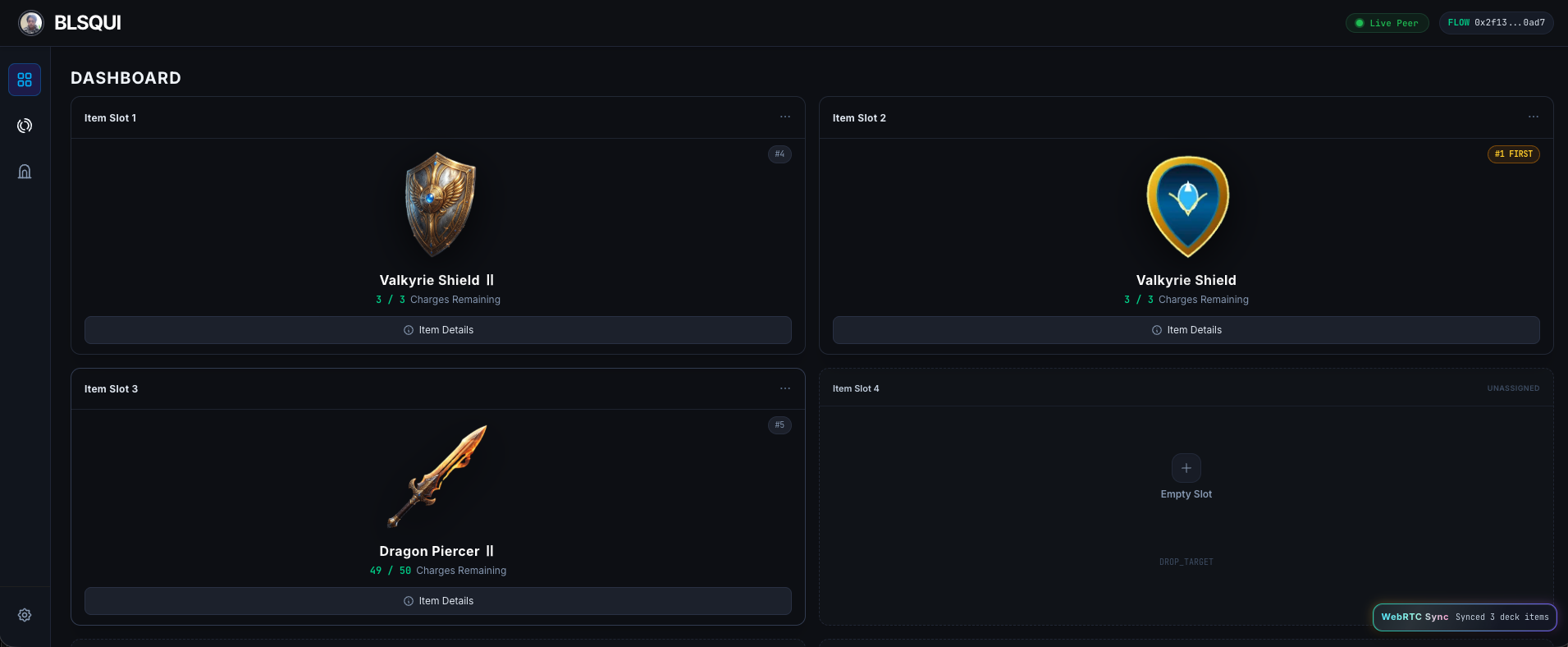
- Prompt the user to use an item when the situation calls for it.
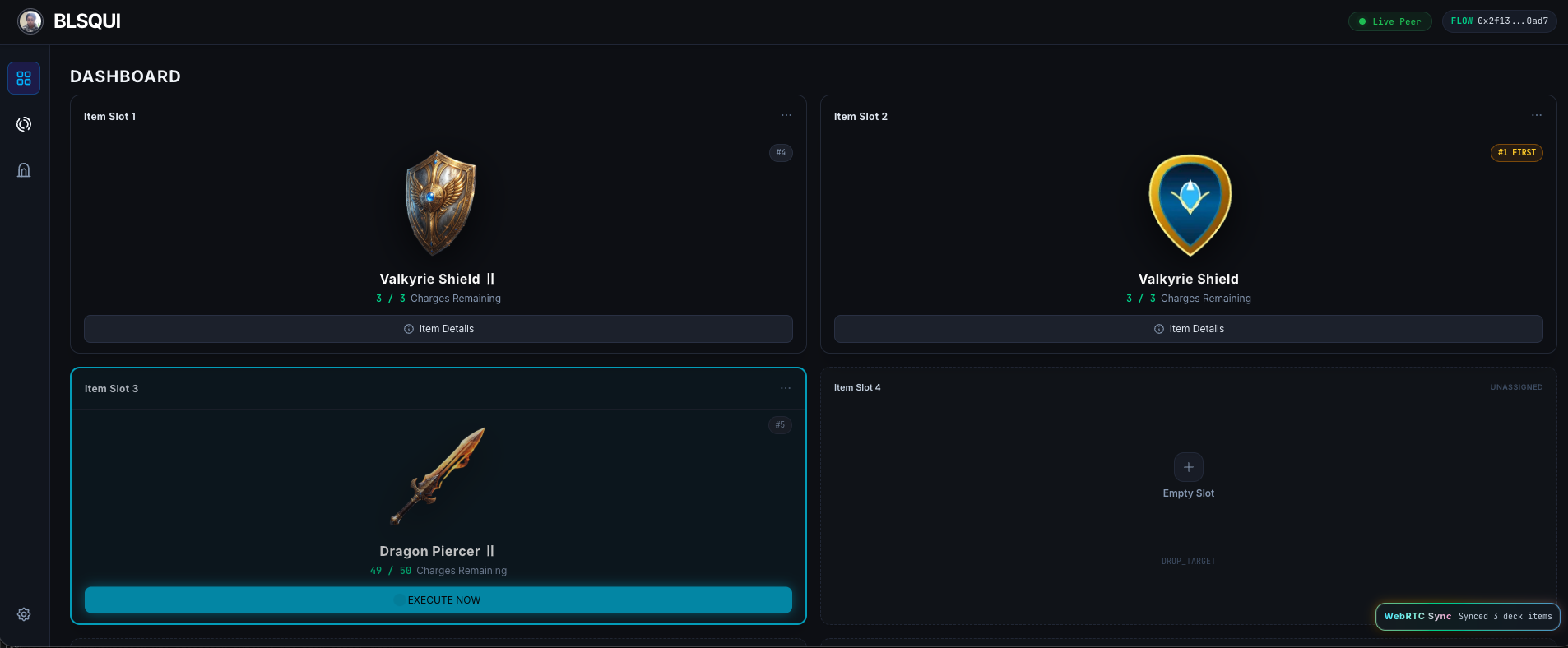
If the dashboard is already open, the specified item will light up. Pressing a button within a set timeframe sends a notification to the game.
- The transaction for using the item is executed.
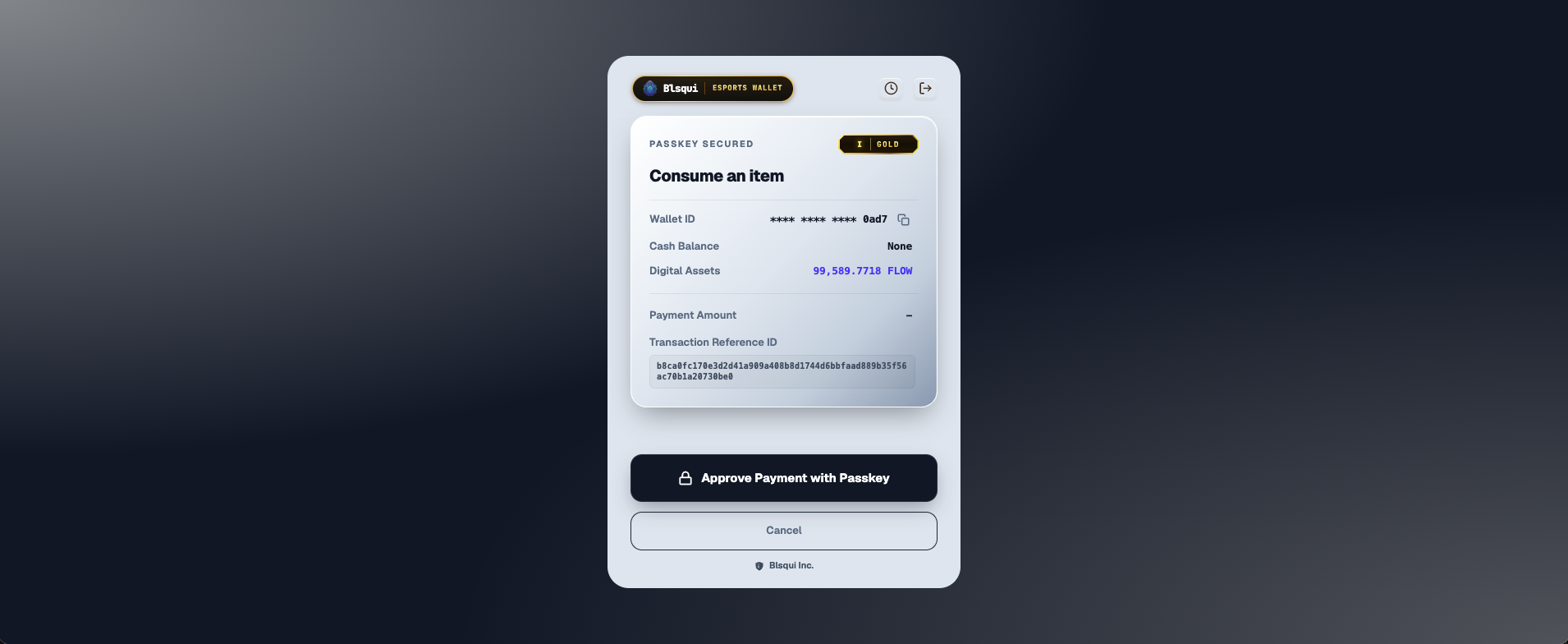
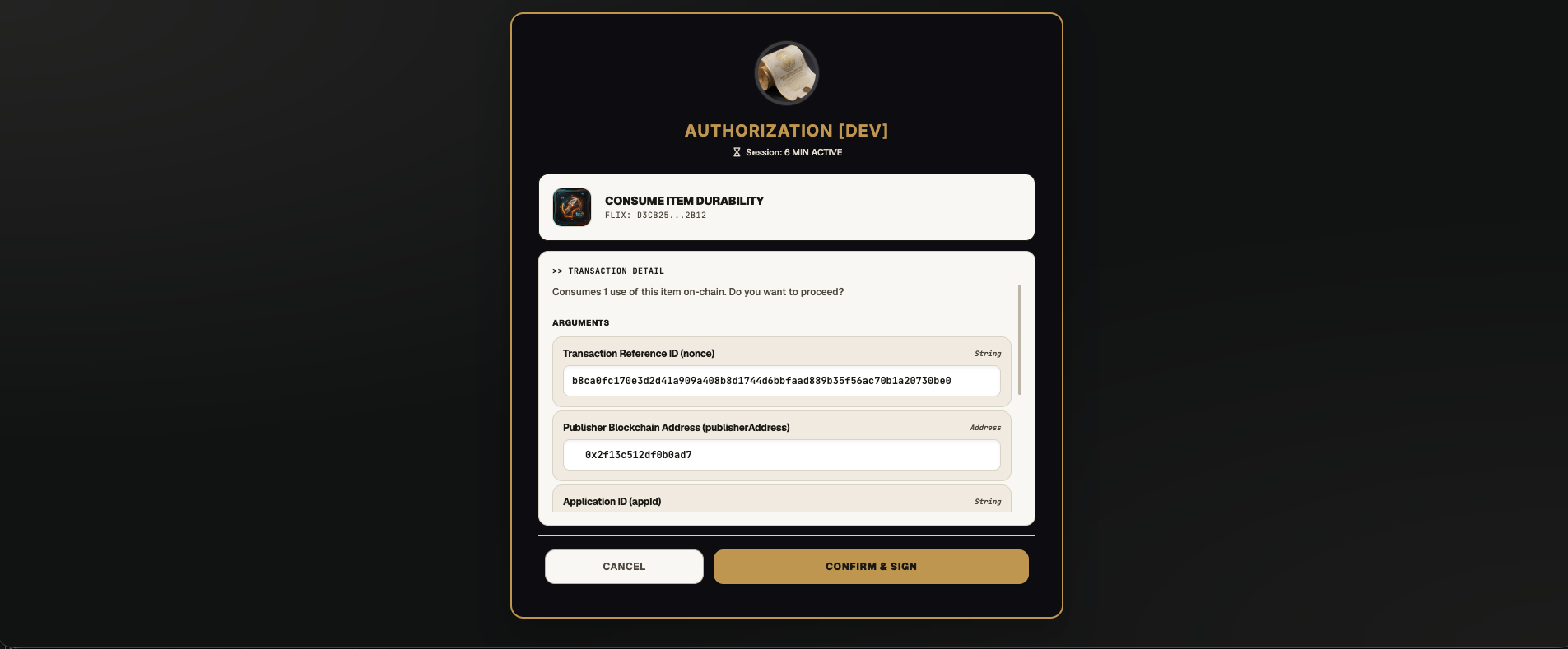
- The game receives the result of the transaction.
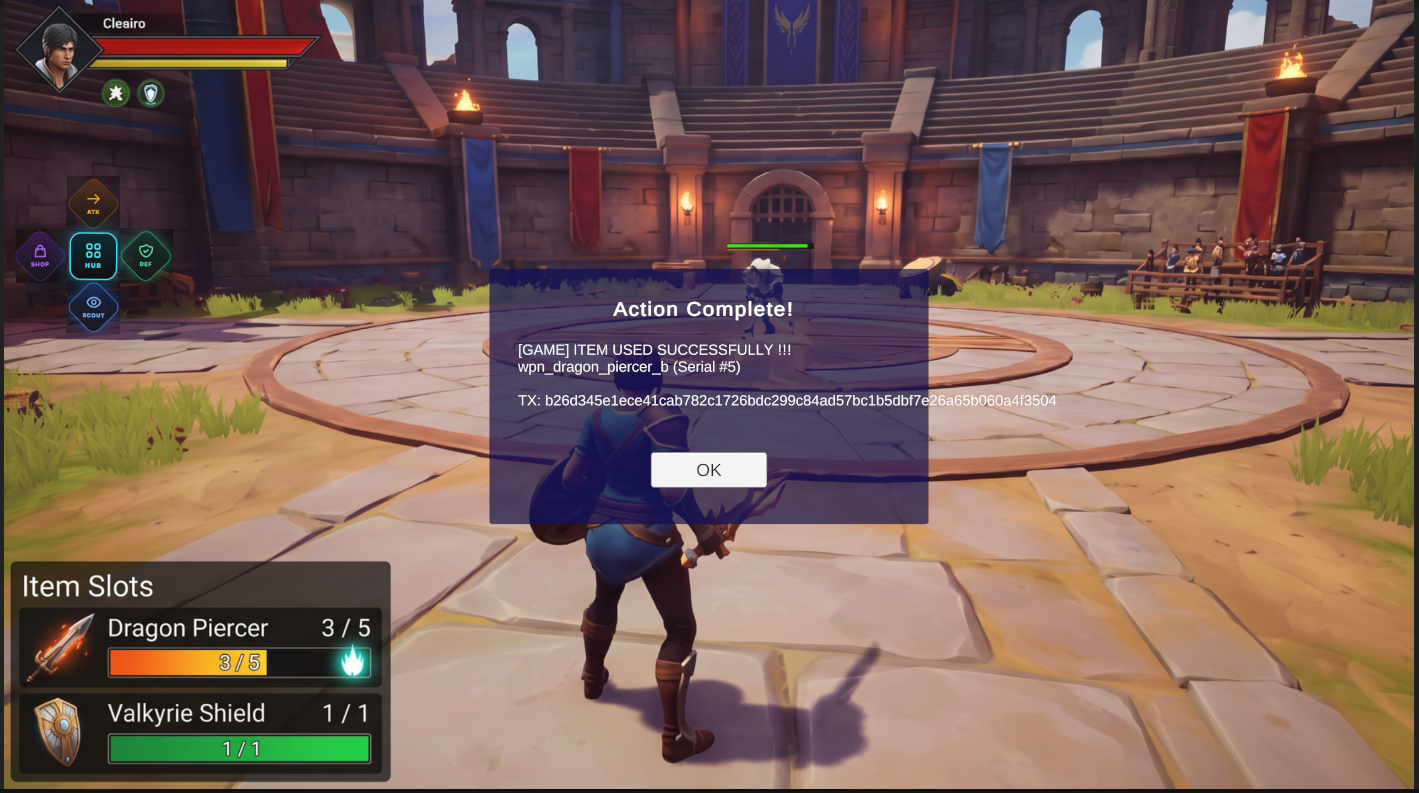
About the author
- Founder & Architect of Blsqui. Building the cloud-native infrastructure layer that transforms standard video games into instant Web3 eSports platforms. Passionate about democratizing global revenue networks for the next generation of independent, AI-driven creators. Creating plug-and-play, no-code backend frameworks for Unity and Godot that integrate frictionless stablecoin microtransactions without client-side execution overhead.
Comments
Join the discussionNo comments yet. Be the first to comment.