Build Web3 Games with Godot Engine (Zero-Fee Web3 & Esports Payments)
Integrating blockchain assets, esports prize payouts, or direct in-game payments into Godot shouldn't require writing custom cryptography or forcing players through clunky browser extensions. In this guide, you’ll learn how to import and set up BlsquiSDK-Godot (https://github.com/blsqui/BlsquiSDK-Godot) inside your Godot project—and wire up real-time WebRTC wallet sync—in just a few minutes.
Open a terminal and run the following command in the root directory of your Godot project.
git clone https://github.com/blsqui/BlsquiSDK-Godot.git addons/blsqui
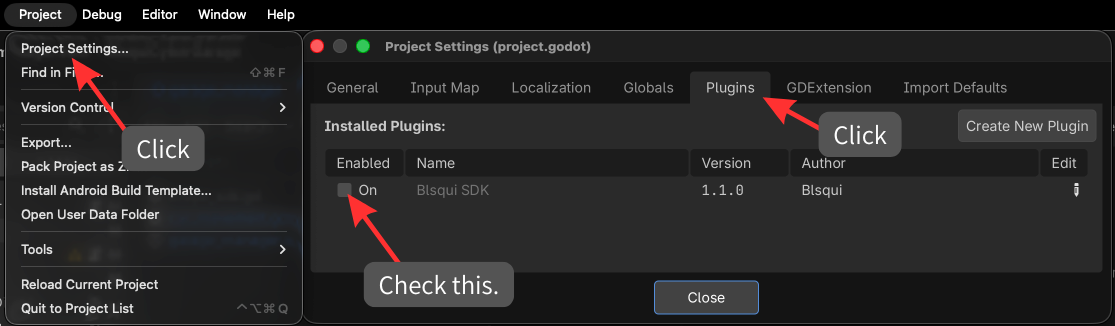
Open your project in the Godot editor. Follow the steps below to enable the SDK.
WebRTC Setup
Because Godot 4 only includes WebRTC out-of-the-box for Web (HTML5) exports, native desktop and mobile builds (macOS, Windows, Linux, iOS, Android)—as well as the Godot Editor—require Godot's official WebRTC Native GDExtension (webrtc-native) so WebRTCPeerConnection and WebRTCDataChannel function properly.
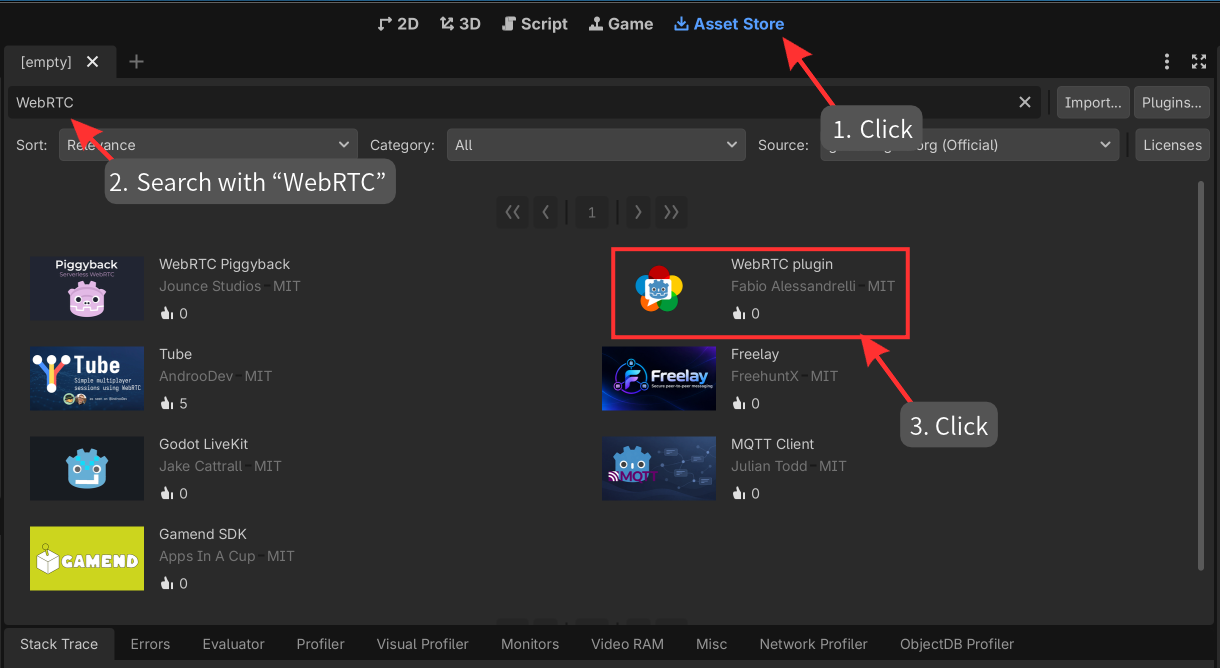
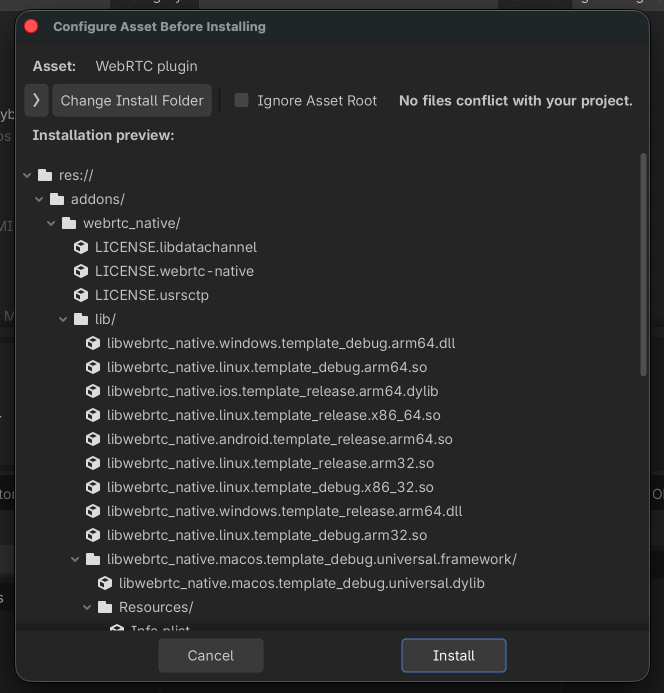
Installation Steps (Asset Store / AssetLib):
- Open the Asset Store (AssetLib) tab at the top of the Godot Editor and search for
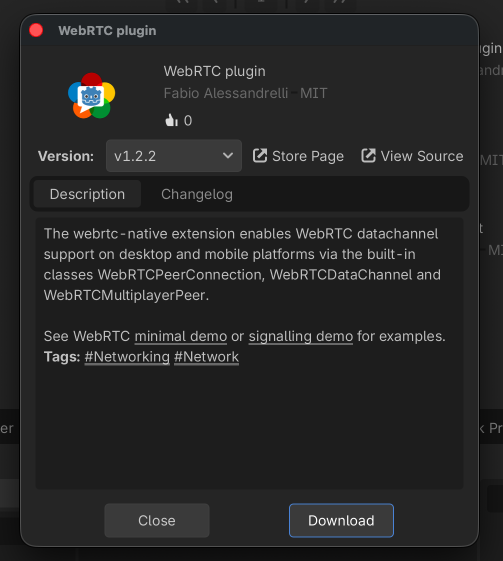
WebRTC. - Select WebRTC plugin (by Fabio Alessandrelli), then click Download → Install to extract it into
res://addons/webrtc_native/. - Reload the project (Project → Reload Current Project) so Godot registers the GDExtension automatically.
The scripts compile automatically.
Here, I will introduce the contents of the SDK code. To ensure Godot developers can integrate on-chain features using familiar GDScript patterns (await and signal connections)—without touching smart contract internals or cryptographic signing logic—the SDK is cleanly separated into four core scripts:
BlsquiSDK(blsqui_sdk.gd/ Static Entry Point & Transaction Engine) Provides the primary static API (summon_dashboard,request_transaction,get_stage_slots, etc.) called directly from game code. Under the hood, it generates a cryptographically secure 256-bitnonce, acquires an asymmetrically signed JWT session token from/api/session/sign, launches the system browser for user approval, and asynchronously polls the backend until the transaction reaches on-chain finality (SEALED).BlsquiCurrentUser(blsqui_current_user.gd/ Persistent Session & Inventory Node) Runs as a persistentNodeattached to the scene tree root, managing the player's wallet address, authentication state, and equipped stage slots (slot). It generates the sessionchannel_key, maintains a 10-second presence heartbeat, and emitsuser_updated,slots_updated, anditem_use_requestedsignals whenever the player logs in, equips items, or triggers an item action from the web dashboard.BlsquiWebRTCPresence(blsqui_webrtc_presence.gd/ Real-Time Bidirectional P2P Client) Uses the WebRTC Native GDExtension to establish a low-latencyWebRTCDataChannelwith the web wallet dashboard via the Pion signaling hub. It handles initial state synchronization on channel open (ping_dashboard), connection health checks (verify_or_reconnect), and real-time relaying of equipment updates and scoped item-use requests (ITEM_USE_REQUESTED) back to the game client.BlsquiStageSlot(blsqui_stage_slot.gd/ Direct On-Chain Slot Query Module) A lightweightRefCountedhelper that executes a Cadence script directly against Flow Access Node REST endpoints (/v1/scripts) without requiring an active wallet login session. It fetches the equipped item slots for a given player address, publisher address, and app ID straight from the blockchain and decodes the Cadence response into a clean array ([{"slotIndex": 1, "itemId": "..."}, ...]).
Next, integrate the BlsquiSDK into the project.
Retrieve the state of the equipment slots for a specific blockchain account.
Call BlsquiStageSlot.GetStageSlots.
(Code example)
using System.Text;
using UnityEngine;
using TMPro;
using Blsqui.SDK;

public class ScoutButtonHandler : MonoBehaviour
{
    private const string TARGET_ADDRESS = "0x2f13c512df0b0ad7";
    private const string PUBLISHER_ADDRESS = "0x2f13c512df0b0ad7";
    private const string APP_ID = "valkyrie_vanguard";

    [Header("UI Dialog References")]
    [SerializeField] private GameObject tournamentDialog;
    [SerializeField] private TMP_Text titleText;
    [SerializeField] private TMP_Text messageText;
    [SerializeField] private GameObject cancelButton; // Will be hidden for Scout modal

    public async void ScoutOpponentSlots()
    {
        Debug.Log($"[Scout] Querying equipped slots for: {TARGET_ADDRESS}");

        // Show immediate loading feedback on the dialog
        if (tournamentDialog != null)
        {
            if (cancelButton != null) cancelButton.SetActive(false);
            if (titleText != null) titleText.text = "Scouting Opponent...";
            if (messageText != null) messageText.text = $"Connecting to Flow Access Node...\nTarget: {TARGET_ADDRESS}";
            tournamentDialog.SetActive(true);
        }

        // Fetch equipped slots from Flow Testnet
        var slots = await BlsquiStageSlot.GetStageSlots(new StageSlotOptions
        {
            targetAddress = TARGET_ADDRESS,
            publisherAddress = PUBLISHER_ADDRESS,
            appId = APP_ID,
            isTestnet = true,
            verbose = true
        });

        // Format and display the scouted results
        if (tournamentDialog != null && messageText != null)
        {
            if (titleText != null) titleText.text = "Opponent Loadout";

            int maxSlotsToShow = 3;
            var sb = new StringBuilder();
            sb.AppendLine($"Target: {TARGET_ADDRESS}");
            sb.AppendLine("Equipped Item Slots:\n");

            bool hasAnyEquipped = false;
            int count = 0;

            foreach (var slot in slots)
            {
                if (count >= maxSlotsToShow)
                {
                    break;
                }

                if (!string.IsNullOrWhiteSpace(slot.itemId))
                {
                    hasAnyEquipped = true;
                    sb.AppendLine($"• Slot {slot.slotIndex}: {slot.itemId}");
                }
                else
                {
                    sb.AppendLine($"• Slot {slot.slotIndex}: (Empty)");
                }

                count++;
            }

            if (!hasAnyEquipped)
            {
                sb.AppendLine("No items equipped in stage slots.");
            }

            messageText.text = sb.ToString();
        }
    }

    // Hooked to ConfirmButton.onClick to dismiss the modal
    public void OnCloseScoutDialog()
    {
        if (tournamentDialog != null)
        {
            tournamentDialog.SetActive(false);
        }
    }
}
Bind this code to the click event of a button.
Triggering the event allows you to retrieve slot information for the specified address.
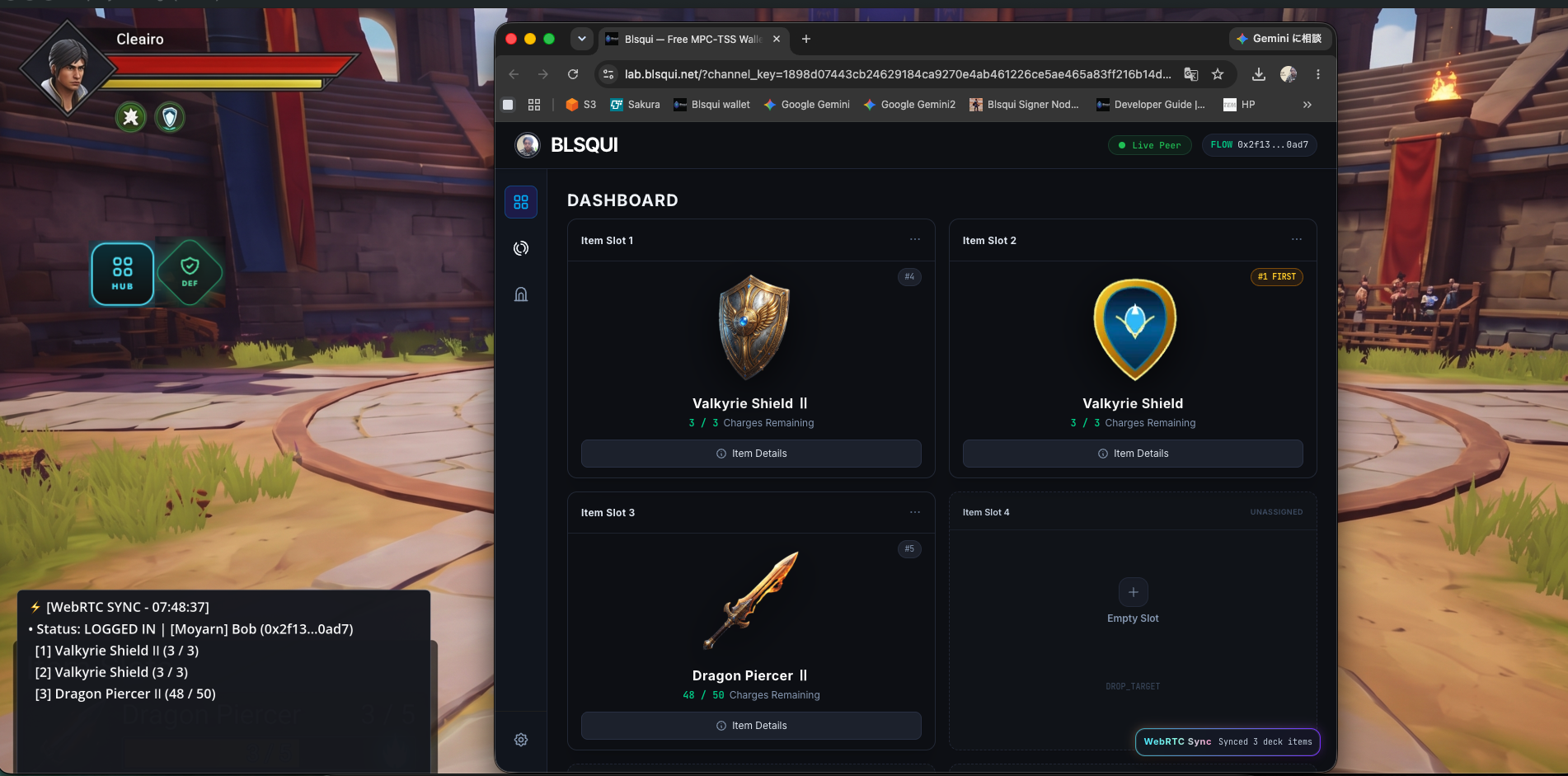
Open the dashboard and retrieve the slot information displayed there.
Call BlsquiCurrentUser.Instance.OpenDashboard.
(Code example)
using System.Collections.Generic;
using UnityEngine;
using Blsqui.SDK;

public class HubButtonHandler : MonoBehaviour
{
    [Header("App Config")]
    [SerializeField] private string appId = "valkyrie_vanguard";
    [SerializeField] private string publisherAddress = "0x2f13c512df0b0ad7";
    [SerializeField] private string network = "testnet";

    private void Start()
    {
        // Ensure BlsquiCurrentUser manager exists in scene
        if (BlsquiCurrentUser.Instance == null)
        {
            var userGo = new GameObject("BlsquiCurrentUser");
            var user = userGo.AddComponent<BlsquiCurrentUser>();
            user.Configure(appId, publisherAddress, network);
        }
        else
        {
            BlsquiCurrentUser.Instance.Configure(appId, publisherAddress, network);
        }

        // Subscribe to real-time user profile & equipped slot updates from the dashboard
        BlsquiCurrentUser.Instance.OnUserUpdated += HandleUserUpdated;
        BlsquiCurrentUser.Instance.OnSlotsUpdated += HandleSlotsUpdated;
    }

    private void OnDestroy()
    {
        if (BlsquiCurrentUser.Instance != null)
        {
            BlsquiCurrentUser.Instance.OnUserUpdated -= HandleUserUpdated;
            BlsquiCurrentUser.Instance.OnSlotsUpdated -= HandleSlotsUpdated;
        }
    }

    public void OnHubClicked()
    {
        Debug.Log("[Hub] Opening Blsqui Dashboard...");
        BlsquiCurrentUser.Instance.OpenDashboard();
    }

    private void HandleUserUpdated(CurrentUserState user)
    {
        if (user.loggedIn)
        {
            Debug.Log($"[Hub] Dashboard Connected | Player: {user.addr} | Name: {user.userName}");
        }
        else
        {
            Debug.Log("[Hub] Player logged out from Dashboard.");
        }
    }

    private void HandleSlotsUpdated(List<StageSlotItem> slots)
    {
        Debug.Log($"[Hub] Synced {slots.Count} equipped slot(s) from Dashboard:");
        foreach (var slot in slots)
        {
            Debug.Log($"  - Slot {slot.slotIndex}: {slot.itemId}");
        }
    }
}
Bind this code to the click event of a button.
Triggering the event opens the Web Dashboard, which transmits user information and equipment slot data to the Godot game engine in real time.
Purchase items
Call BlsquiSDK.request_transaction.
(Code example)
class_name ShopButtonHandler
extends Button

const WEAPON_SHOP_FLIX_ID: String = "351d9d6f23ebe5ddbe9bf5b4f937a352c5caaa6a4439b5e464f3b16c1d671472"

@onready var loading_dialog: AcceptDialog = get_node_or_null("../LoadingDialog")

var _is_purchasing: bool = false

func _ready() -> void:
	pressed.connect(_on_shop_button_clicked)

func _on_shop_button_clicked() -> void:
	if _is_purchasing:
		return

	_is_purchasing = true
	disabled = true
	print("[Shop] Opening purchase transaction...")

	# Show transaction feedback in the dialog (matching car_movement.gd)
	if loading_dialog != null:
		loading_dialog.title = "Processing Shop Item..."
		loading_dialog.dialog_text = "Authorizing transaction on Flow...\nPlease complete payment in the browser."
		loading_dialog.popup_centered()

	# Configure transaction options matching Unity ShopButtonHandler
	var options: Dictionary = {
		"is_testnet": true,
		"verbose": true,
		"flix_id": WEAPON_SHOP_FLIX_ID,
		"args": {}
	}

	var result: Dictionary = await BlsquiSDK.request_transaction(options)

	# Update dialog state upon completion
	if result.get("status") == "SEALED":
		var tx_id: String = str(result.get("txId", ""))
		print("Shop purchase succeeded! TX ID: ", tx_id)
		if loading_dialog != null:
			loading_dialog.title = "Purchase Successful!"
			loading_dialog.dialog_text = "Item purchase sealed !!!\n\nTX ID:\n%s" % tx_id
			loading_dialog.popup_centered()
	else:
		var err_msg: String = str(result.get("errorMessage", ""))
		if err_msg == "" or err_msg == "<null>":
			err_msg = str(result.get("error", "Unknown error"))
		push_warning("[Shop] Purchase incomplete. Status: %s | Error: %s" % [result.get("status", "UNKNOWN"), err_msg])
		if loading_dialog != null:
			loading_dialog.title = "Transaction Cancelled"
			loading_dialog.dialog_text = "Status: %s\n%s" % [result.get("status", "UNKNOWN"), err_msg]
			loading_dialog.popup_centered()

	disabled = false
	_is_purchasing = false
Bind this code to the click event of a button.
Triggering the event opens the SDK’s transaction screen. Once an item is purchased, the full payment amount is credited to the account associated with that item.
Prompting Blockchain Item Usage
Call BlsquiSDK.trigger_item_action.
extends CharacterBody2D

const SHIELD_ITEM_ID: String = "shd_valkyrie_aegis_b"

func _ready() -> void:
	input_pickable = true

func _input_event(_viewport: Viewport, event: InputEvent, _shape_idx: int) -> void:
	if event is InputEventMouseButton and event.button_index == MOUSE_BUTTON_LEFT and event.pressed:
		_on_def_button_pressed()

func _on_def_button_pressed() -> void:
	print("[DEF Button] Pressed")

	if not BlsquiSDK.current_user:
		print("[DEF Button] No active session. Open dashboard first.")
		return

	var slots: Array = BlsquiSDK.current_user.user_state.get("slot", [])
	var target_item_id: String = ""

	# Check if the shield is currently equipped in any slot
	for slot: Dictionary in slots:
		var item_id: String = str(slot.get("itemId", ""))
		if item_id == SHIELD_ITEM_ID:
			target_item_id = item_id
			break

	if target_item_id == "":
		print("[DEF Button] Shield not equipped! Cannot trigger DEF action.")
		return

	print("[DEF Button] Activating shield: ", target_item_id)
	BlsquiSDK.trigger_item_action(target_item_id)
_on_def_button_pressed: Calls BlsquiSDK.trigger_item_action with the target item_id to send an item-use prompt to the dashboard,
while connecting to the slots_updated signal dynamically enables only the buttons matching the player's currently equipped slots.
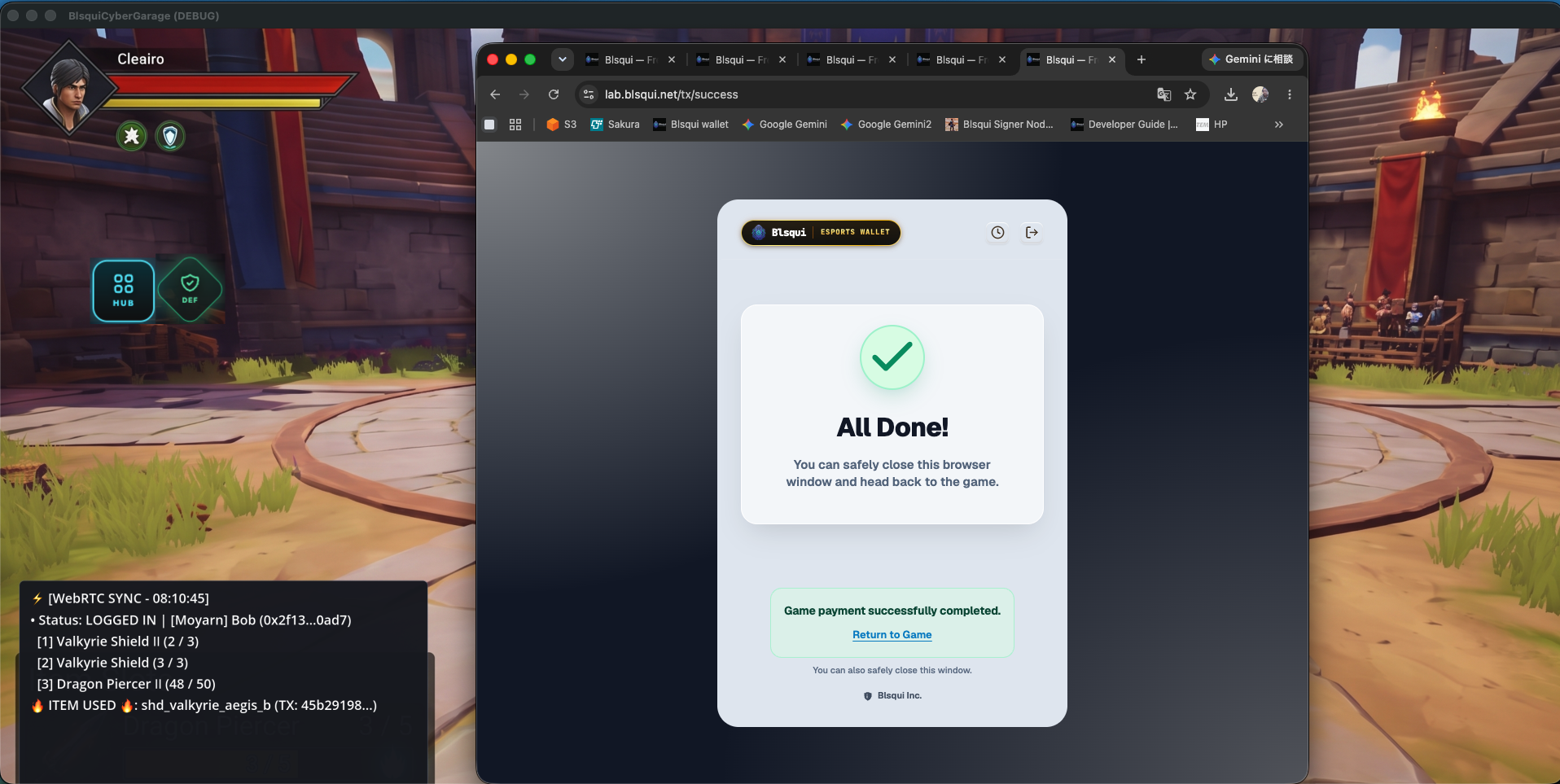
The _on_item_use_requested signal handler runs automatically when the player confirms item usage on the dashboard. By passing publisherAddress, appId, itemId, and serialNumber inside the args dictionary to BlsquiSDK.request_transaction, the SDK uniquely identifies and consumes the exact item on-chain, then updates the dialog UI once SEALED.
Triggering this action while the dashboard is open prompts the player to use the item directly from the browser dashboard.
Try it out!
- Set up two monitors side-by-side and access the dashboard from within the game.
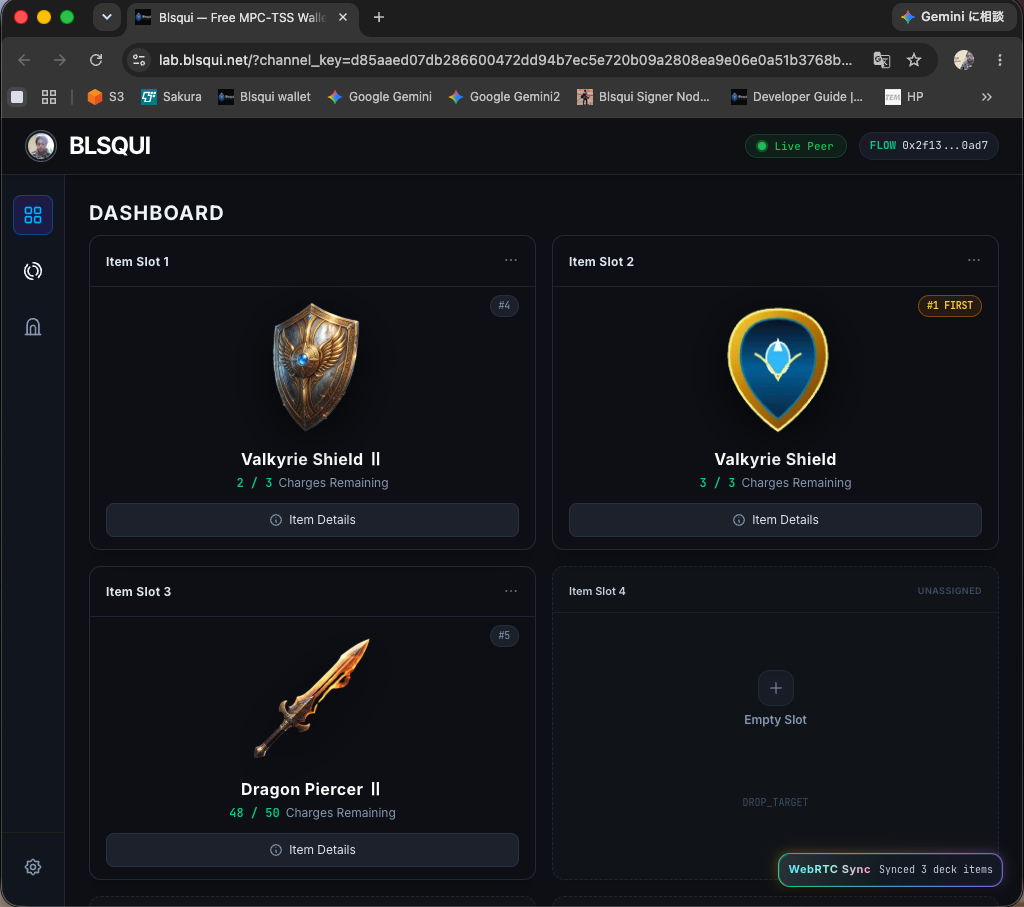
- Prompt the user to use an item when the situation calls for it.
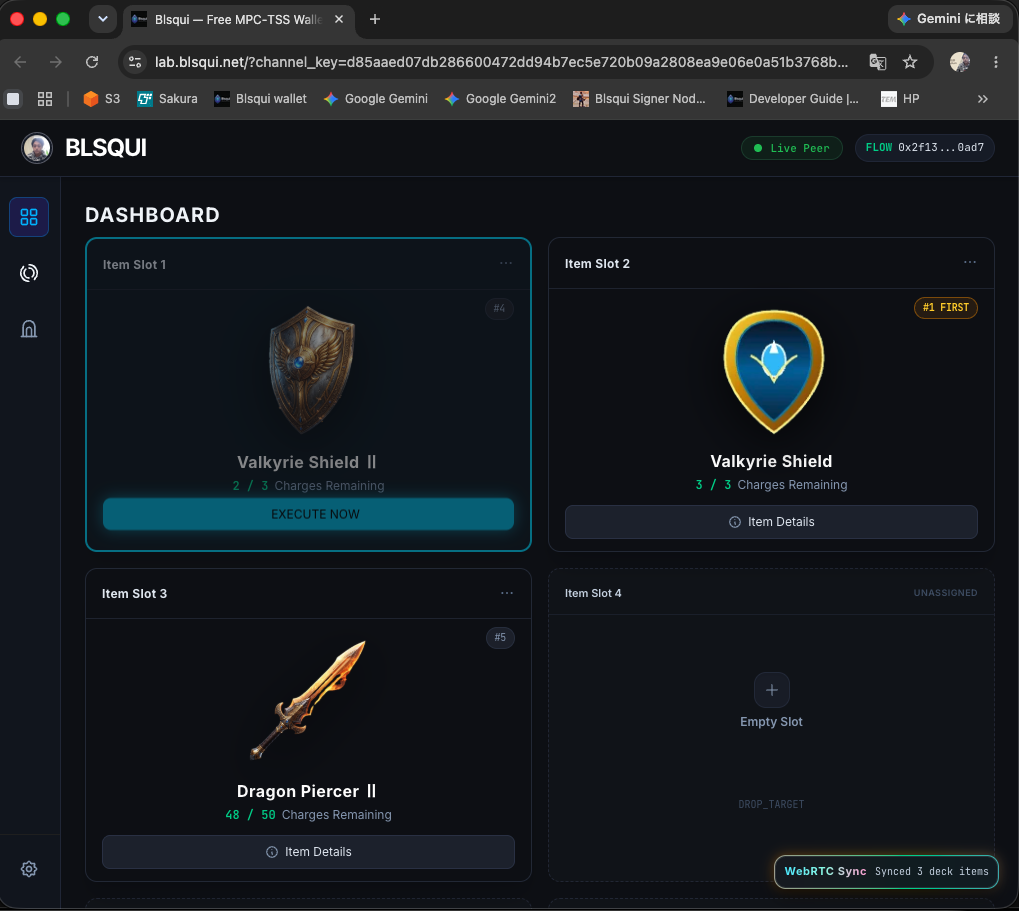
If the dashboard is already open, the specified item will light up. Pressing a button within a set timeframe sends a notification to the game.
- The transaction for using the item is executed.
About the author
- Founder & Architect of Blsqui. Building the cloud-native infrastructure layer that transforms standard video games into instant Web3 eSports platforms. Passionate about democratizing global revenue networks for the next generation of independent, AI-driven creators. Creating plug-and-play, no-code backend frameworks for Unity and Godot that integrate frictionless stablecoin microtransactions without client-side execution overhead.
Comments
Join the discussionNo comments yet. Be the first to comment.